Want to start your first video, Zoom, or remote podcast but don’t know where to start? If you’ve been asking yourself how do you record a podcast, the good news is that getting started is easier than it looks.
With a quiet space, a microphone, and the right recording software, you can create a podcast from home without needing a full studio setup.
In this guide, we’ll cover the most common ways to record a podcast, including remote, Zoom, and video podcast setups. You’ll also learn which equipment beginners actually need and a few simple tips that can improve audio quality right away.
TL;DR – How Do You Record a Podcast?
Have you been wondering, “How can I record a podcast?”
Here’s a quick overview of the top 3 ways to record a podcast, all of which we’ll cover in more detail later in this guide:
- Record a podcast remotely.
- Record a podcast on Zoom.
- Record a video podcast.
Here’s a quick comparison of each method, including what they’re best for and the tools you’ll need:
If you already have Zoom recordings, webinars, or coaching calls built into your business, you can start a free trial with Hello Audio and turn your existing content into private podcast feeds that your audience can listen to on the go.
Essential Podcast Equipment for Beginners
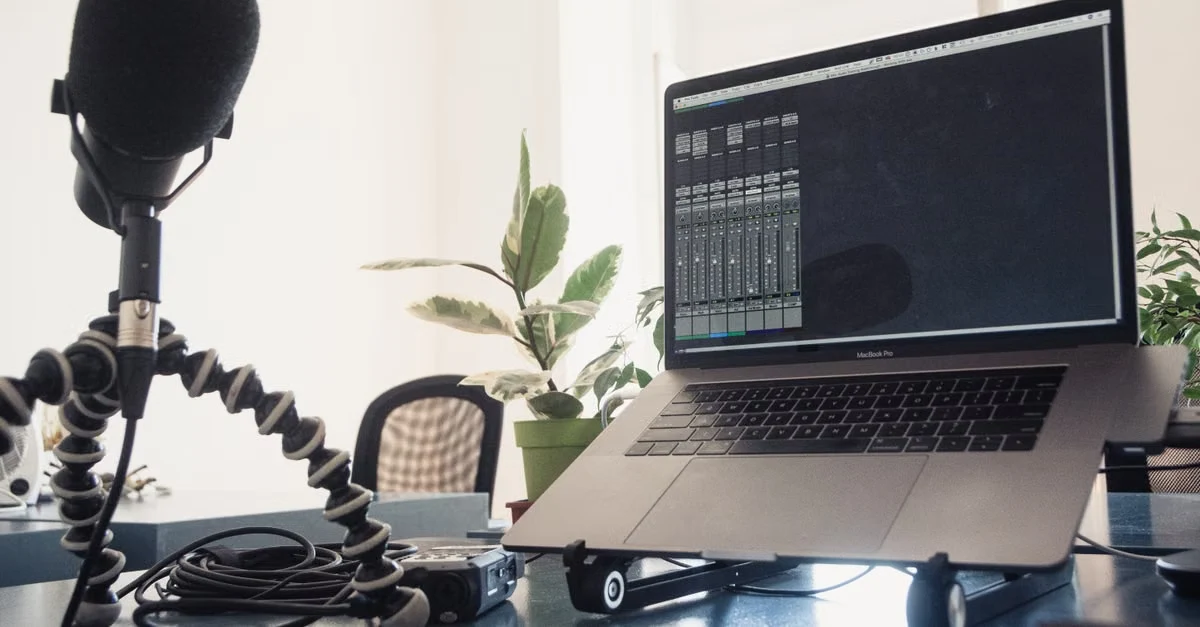
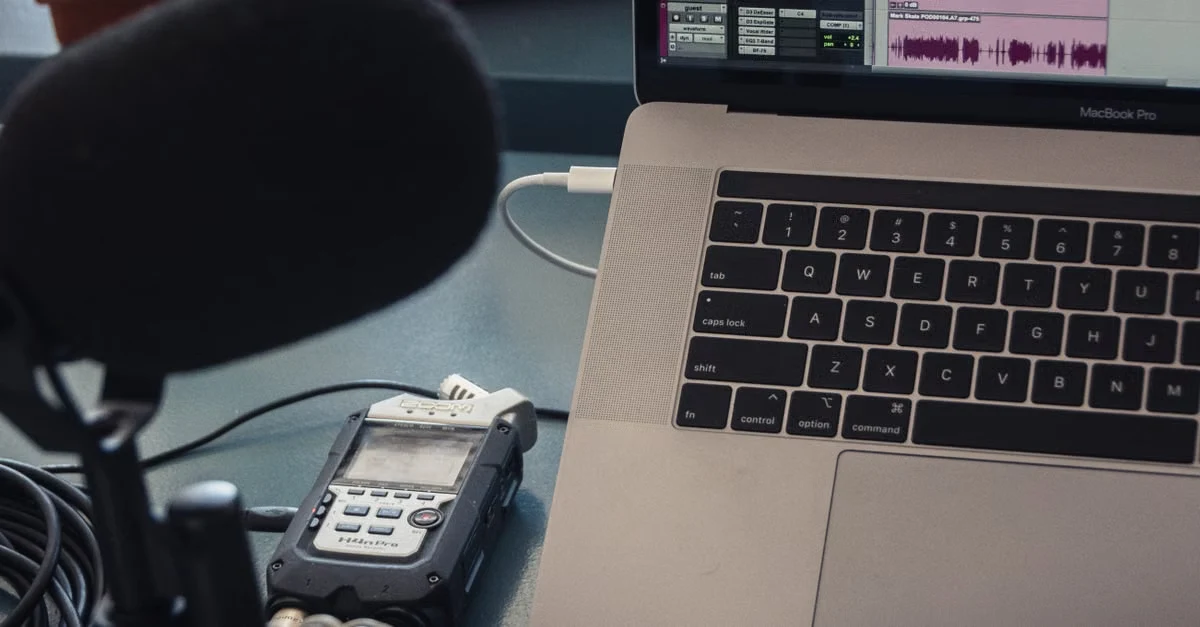
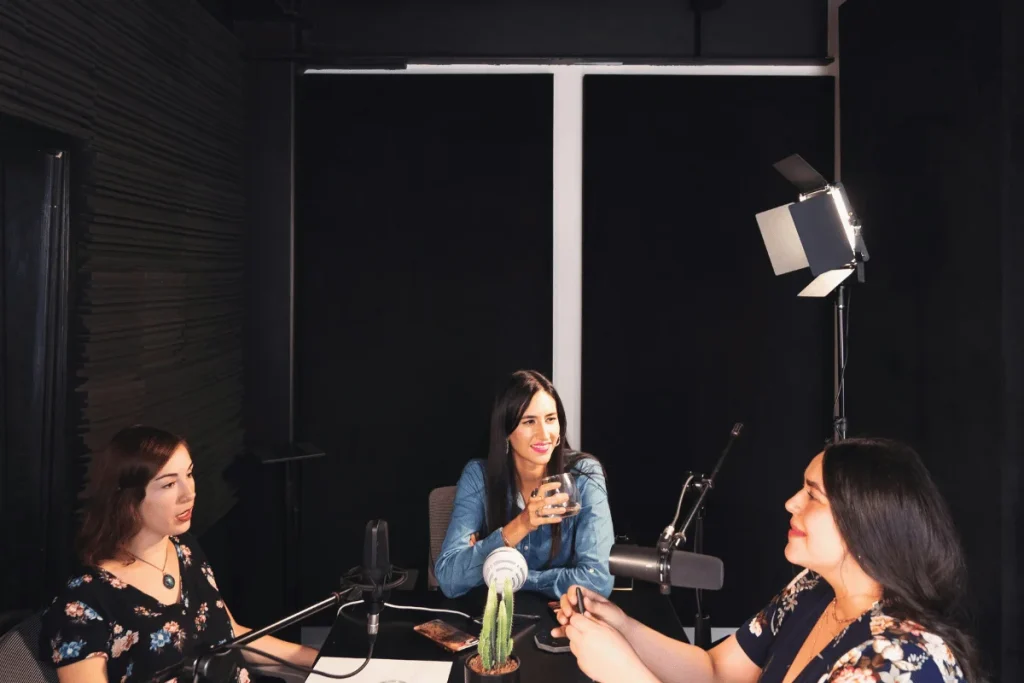
You basically need a simple setup to record a great-sounding podcast. Here are the four main pieces of equipment that you can use as a beginner:
For a deeper breakdown of microphones, mixers, lighting, and other setup gear, check out our complete podcast equipment guide:
1. External Microphone(s)
While your built-in laptop or phone mic can work, it picks up echoes and unwanted noises, resulting in low-quality audio when recording a podcast. So, level up your podcasting with an external microphone.
In fact, mic choice is usually the single biggest factor in podcast recording audio quality.
Before investing in a podcast mic, check the audio quality, portability, ease of setup, connectivity, and any extra features.
If this is your first time recording a podcast, USB mics like the Samson Q2U and Rode NT-USB are a good place to start because setup is simple and you can start recording straight from your computer.
2. Headphones
Headphones are the next must-have for podcasters. They help you hear clearly when recording and adjust your tone or volume levels. Plus, they stop your mic from picking up unwanted noises (audio bleed or echo).
You’ll do just fine with any headphones you might have. However, consider choosing a pair of headphones designed for podcasting for the best audio quality.
It should have an adjustable fit and padded cushions to provide comfort for long recording hours. Go for wired headphones for an uninterrupted signal. Plus, check if they have noise cancellation features to cancel unwanted outside noises.
Pro Tip: If you still encounter unwanted noises in your audio, you can easily clean up your audio recordings.
3. Podcast Recording Software
Sometimes referred to as a Digital Audio Workstation (DAW), this tool lets you record, edit, and mix podcasts on your computer.
It’s crucial to check if the software supports local and multi-track recording. The software should also let you invite remote guests and record videos. Plus, it should have a mobile app to record podcasts with your phone.
Examples of podcast recording software include Audacity, SquadCast, and Spotify for Podcasters.
We’ll also compare some of the best podcast recording software options later in this guide, including which tools work best for beginners, remote interviews, and video podcasts.
4. Camera
While modern phones have decent podcast filming capabilities, you might still need an external camera. Today, even your phones can record surprisingly good podcast video, but as a podcaster, you would still need an external camera for a more consistent setup and better video quality. When choosing a camera, consider video resolution and portability.
Popular options include the Logitech C920 or Logitech C922 Pro webcam, along with dedicated podcast cameras like the Nikon D5300.
Got all the equipment set? Let’s move on to how to record podcast audio.
How to Record a Podcast
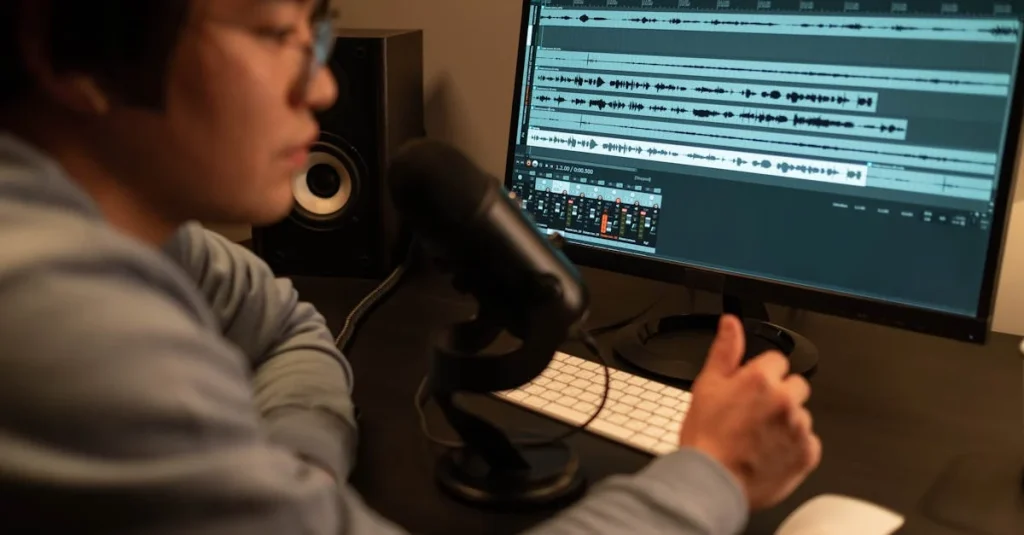
So, how do you record a podcast? Once your setup is ready, the next step is choosing the recording method that fits your podcast style.
Remote recording works well for guest interviews, Zoom is the easiest option for simple conversations, and video podcasting makes sense if you want content for YouTube or social media.
Here’s how to record a podcast using each method, step by step:
How to Record a Podcast Remotely
One of the best things about podcasting is that you can record from almost anywhere. If you’re wondering how to record a podcast with remote guests, this is usually the easiest setup to start with.
Here’s how to record long-distance podcasts in 4 steps:
- Choose and install remote recording software: Not all podcast software supports remote recording, so choose platforms like Alitu and Spotify for Podcasters. Using dedicated software is usually the best way to record a podcast remotely because each participant can record higher-quality audio separately.
- Set up and test your equipment: Prepare and set up your mics, headphones, pop filter, podcast mixer, and laptop. Besides, test your external mics and headphones, and make sure they are connected to your recording software. Review the audio quality and ensure all the participants can hear each other.
- Invite your guests: Send your guests an invitation link from your recording software so they can join the session.
- Start recording: Once everyone is ready, hit record and begin the session. Before starting the actual conversation, do a quick 30-second test recording to check audio levels, background noise, and internet stability.
How to Record a Podcast on Zoom
Zoom is one of the easiest ways to record remote podcast interviews because it supports both video and audio recording in the same session. If you’re wondering how to record a podcast on Zoom, here’s a simple step-by-step setup to follow:
- Install Zoom: Download Zoom on your laptop or preferred device. Zoom’s free plan currently limits most group meetings to 40 minutes, so longer podcast interviews may require a paid plan.
- Choose a quiet recording environment: Zoom includes built-in echo cancellation, but background noise can still affect audio quality. Turn off fans, notifications, and other noisy appliances before recording.
- Set up your mics and headphones: While Zoom’s default mic settings can work, using an external microphone and headphones will give you much cleaner audio.
- Record separate audio tracks: In Zoom settings, enable “Record a separate audio file for each participant.” This makes editing much easier later on.
- Prepare your guests: Before recording, let guests know how long the session will take and what topics you’ll cover. It also helps to do a quick audio test before starting.
- Start recording: Once everyone joins the call, hit “Record” and start the session. Recording a quick test clip first can help you catch audio or internet issues before the actual interview begins.
How to Record a Video Podcast
If you already have an audio podcast and want to add video, the setup is usually simpler than people expect. Once you understand how to film a podcast properly, creating video content becomes much easier to manage.
Follow these 4 steps to handle podcast video recording more smoothly:
1. Set Up Your Camera(s) and Light
First, mount your camera on your tripod or set up multiple cameras. Make sure the framing is correct. If you’re recording on the phone or webcam, wipe the lens with a dry cloth to remove dirt marks.
Don’t forget to arrange the lights on your set and connect your mics and headphones to your podcast mixer (if you’re using one).
2. Decorate Your Set
Next, set up the space you’ll be recording in. A few details in the background, like artwork, bookshelves, plants, or brand colors, can make the video feel more put-together on camera.
Just keep the setup fairly clean and uncluttered so the focus stays on you and the conversation.
3. Install Reliable Recording Software
Should you choose to record a video podcast remotely, you must install remote recording software designed for video recording, such as Riverside and Soundtrap.
Your recording tool should offer a mobile app if you can record with your phone. Once installed, invite your guests to join the show.
4. Start Recording
Lastly, test the quality of the video and make sure everyone can hear you. Then, hit record on your camera.
How to Record a Podcast for Free
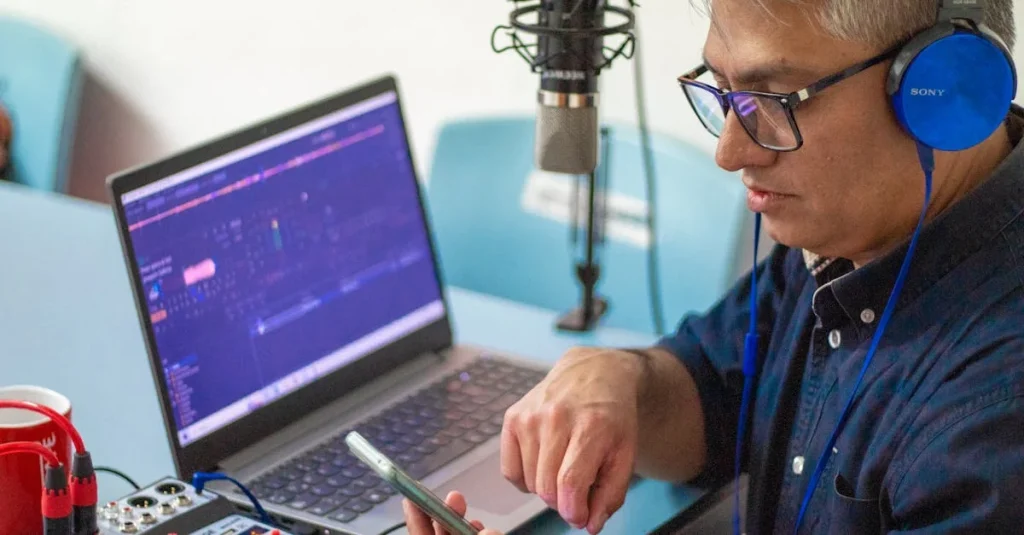
If you’re testing a new idea or recording your first few episodes, a simple free setup is usually enough to get going.
A free podcast setup is pretty simple to put together:
- Record with your laptop mic or a basic USB microphone.
- Use free software like Audacity, GarageBand, or Spotify for Podcasters.
- Edit the audio inside the same tool.
- Upload the final episode using a free podcast hosting platform.
If you’re figuring out how to record a podcast on a Mac, GarageBand is one of the easiest places to start since it already comes installed on most Apple devices. It’s also a popular option for beginners learning how to record a podcast on GarageBand without buying additional software.
Here’s a quick comparison of some popular free podcast recording tools:
Free tools are usually enough to record your first few episodes and test different podcast formats. As your setup grows, moving to more advanced tools from this list of best podcast editing software can make recording and editing much easier.
Best Podcast Recording Software and Tools for Beginners
Once your recording setup is ready, the next step is choosing software that fits the way you want to record and publish your podcast. Below are some popular podcast recording tools for beginners, remote interviews, and private podcast workflows.
If editing is your main focus, we’ll also cover more advanced podcast editing tools later in the guide:
1. Hello Audio
Hello Audio is designed for creators who already have content like webinars, courses, coaching calls, or presentations and want to turn them into private podcast feeds.
Check out the key features below:
Hello Audio works especially well for course creators, coaches, memberships, internal company podcasts, and creators repurposing existing content into audio feeds.
If your workflow depends heavily on live podcast interviews or built-in remote recording, a dedicated recording platform like Riverside or SquadCast may make more sense alongside your podcast hosting setup.
Want to take Hello Audio features for a spin? Book an instant demo.
2. Adobe Audition
Next on our list is Adobe Audition, which is popular for its comprehensive editing tools.
Here are the positives and the negatives of this tool:
Best Podcast Recording Software
Choosing the right podcast recorder depends on how you plan to handle podcast recording. Some tools are better for remote interviews, while others are built more for editing, solo recording, or video podcasts.
Here’s a quick comparison of some of the most popular podcast recording software options:
Best Podcast Recording Tools
Step up your podcasting with additional equipment to help you create polished content for your listeners (and viewers).
Read on and see our list of the 4 best podcast tools: kit.
These accessories can make your setup feel more polished as you record more episodes.
Common Podcast Recording Mistakes to Avoid
Even with good equipment, a few small mistakes can seriously affect podcast audio quality. Most beginners run into the same issues when recording audio for podcast episodes, especially during the first few recordings.
Common mistakes include:
- Recording in a noisy or echo-heavy room: Hard surfaces, empty rooms, fans, and outside traffic can make audio sound hollow or distracting. Softer spaces with rugs, curtains, or furniture usually sound much better for podcast recording.
- Using only your laptop’s built-in microphone: Laptop mics tend to pick up room echo and background noise much more easily. Even a basic USB microphone can make voices sound clearer and more consistent.
- Skipping a test recording: A lot of recording issues are easy to miss until you listen back afterward. Before starting the actual session, record a quick test clip and listen to it once to check the mic levels and sound quality.
- Not recording separate audio tracks: When everyone records onto a single track, editing becomes much harder later on. Separate tracks make it easier to adjust volume, remove background noise, and fix interruptions.
- Recording without headphones: Headphones help you catch echo, audio bleed, or microphone problems while recording instead of discovering them afterward during editing.
- Ignoring room tone: Before ending the recording, leave a few seconds of silence in the room. That small bit of background audio can make edits sound much smoother later on.
- Not backing up your raw audio files: Sometimes recordings get corrupted, files go missing, or something simply doesn’t save correctly. Keeping an extra copy of the raw audio right after recording gives you something to fall back on if that happens.
If you’re planning to record on mobile devices, learning how to record on iPhone can help you avoid common audio and setup issues that show up with phone-based podcast recording.
Frequently Asked Questions (FAQs)
Check out our FAQ section, where we will answer the common questions about recording podcasts:
How Long Does it Take to Record a Podcast?
The short answer is — it depends. The timings of recording an episode vary from one podcaster to another. Typically, recording podcasts can take only 15 minutes, while others take 60 minutes or longer.
How do I Record a Podcast with Two 3.5mm Microphones?
One option is using an adapter like Rode AI-Micro to plug two 3.5 mm mics together. The second option is to use a podcast mixer with two microphone inputs and split the audio into two separate tracks.
Can You Record a Podcast with AirPods?
You can record your podcast with AirPods. However, AirPods microphones don’t provide clear audio.
So, while you (and your guests) likely have a pair of AirPods, don’t use them for podcast recording. Invest in an external podcast microphone instead.
Can You Record a Podcast On Your Phone?
Absolutely yes! You only need a microphone, headphones, and a podcast recorder app to easily record and publish your audio from your phone. Check if your equipment and app are compatible with your phone for a seamless recording experience.
Conclusion
Now that you know how to record a podcast using the three main methods, the next step is choosing the setup that fits your show and starting with the tools you already have. Whether you record remotely, on Zoom, or with a full video setup, the basics stay the same: clear audio, a reliable recording workflow, and a setup you can consistently use.
If you already have webinars, coaching calls, presentations, or other long-form content, Hello Audio lets you turn them into private podcast feeds and publish them to podcast apps your audience already uses.
You can also learn how to launch a private podcast before starting a free trial with Hello Audio.